How to Update My Garmin Fish Finder
Update your Garmin fish finder with the method Garmin supports for your model, then keep the unit powered until the installation finishes. Check the model, back up important settings, and confirm the software version afterward.
On this page (8 sections)
- What should you check before updating a Garmin fish finder?
- Which Garmin update method should you use?
- How do you update a Garmin fish finder with a memory card?
- How do you update a Garmin fish finder over a network?
- What should you do after a Garmin software update?
- Do screen protectors help after updating a Garmin fish finder?
- What if the Garmin fish finder will not update?
- How to update my Garmin fish finder safely
To update your Garmin fish finder, identify the exact model, use Garmin's compatible update method, and keep the unit on stable power until the process ends. This simple order prevents most mismatches and interrupted installations.
Start by finding the full model name on the unit or in its system information screen. Similar names can hide different software, so check the part number and screen size before you download anything.
Note the current software version and the settings you rely on most. Sonar, chart, GPS, and display choices are worth recording before a change, since menus may move or reset afterward.
Garmin updates can change menus, improve compatibility, or address software problems. The correct steps depend on whether you have an ECHOMAP, STRIKER, or another Garmin marine display, so model specific guidance matters.
Choose the source Garmin lists for that model, rather than a file from an unrelated page. Prepare the card, computer, or network as directed, and keep the unit powered throughout.
Afterward, restart the unit and confirm the new software version in the system settings. Then test sonar, charts, GPS, and connected equipment before you trust it on the water.
Plan the update for a calm day at the dock or in a garage, not just before departure. That leaves time to repeat a step, review settings, and seek support if the unit asks for help.
What should you check before updating a Garmin fish finder?
Check the model number, current software version, power source, and available update method before downloading anything. Model names can be similar while using different software packages.
Write down the full model name shown on the unit or its system screen. A Garmin ECHOMAP Ultra 2 and an older ECHOMAP model may not use the same update instructions.
Open the system information screen and record the current software version. Also note sonar settings, data fields, chart preferences, and other changes you may want to restore after the update.
Garmin's official marine software support is the best starting point for compatible files and instructions. Use the model-specific guidance rather than a file found through an unrelated download page.
If you are still learning the menus, our guide on how to use Garmin ECHOMAP Ultra 2 explains the layout and common controls.
Which Garmin update method should you use?
Use the update method Garmin lists for your exact fish finder. Depending on the unit, that may involve a compatible memory card, a computer, or a supported network connection.
Some Garmin marine displays can download software through a connected network. Others require a memory card prepared with the correct update files.
Do not assume that a card update and a network update are interchangeable. Follow the order Garmin gives for downloading, copying, inserting, and starting the update.
Check the manual or support page before you format a card or plug in a computer. A method that suits one model family may not be supported on another, even when the screens look alike.
Keep the fish finder connected to a stable marine power source. An interruption while software is being installed can leave the unit unable to start normally.
A network update suits a unit that supports it and stays in a reliable signal area. Park within range, keep the connection steady, and avoid starting the process where the signal may drop.
A card update suits a model that requires prepared files. Back up the card, use the type and capacity Garmin supports, and copy files exactly as directed without renaming folders.
A computer method, where supported, follows its own cable and program steps. Read the full sequence first, then do one step at a time and watch for prompts before you continue.
Whichever route you use, do not remove power, cards, cables, or network access mid process. Let the unit restart on its own, then verify the version and test basic functions before use.
How do you update a Garmin fish finder with a memory card?
Download the software for the exact model, prepare the compatible card as Garmin directs, insert it into the powered fish finder, and follow the on-screen prompts. Do not remove the card or switch off power during installation.
Before you begin, check the card for important files and back them up if needed. Use a card that meets Garmin's current instructions for that unit.
Download only the software package intended for your model. Copy the files using the folder structure Garmin specifies, because moving or renaming files can prevent the unit from recognizing the update.
Insert the card with the fish finder ready and powered. If an update prompt appears, read the model name and version before accepting it.
Allow the unit to restart as needed. The screen may go blank or show progress during the process, but you should not interrupt power unless Garmin's instructions tell you to do so.
For a model-specific example, see our guide to a Garmin 106sv update.
How do you update a Garmin fish finder over a network?
Use a network update only when your Garmin model supports it and has a reliable connection. Keep the unit connected to power and avoid starting the process where the signal may drop.
Open the system software or update menu and check for available software. Confirm that the proposed update matches your unit before starting.
Leave the display alone while it downloads and installs. Do not disconnect the network, remove a card, or turn off the boat's electronics during the update.
When the unit restarts, return to the system information screen and compare the displayed version with the installed release. If the version has not changed, repeat the instructions from Garmin rather than trying a different file.
What should you do after a Garmin software update?
Confirm the software version, test the basic menus, and review your saved settings after the restart. Check sonar, chart, GPS, transducer, and display functions before relying on the unit on the water.
Open the main menu and confirm that the fish finder responds normally. Check the chart view, sonar view, depth reading, GPS position, and any connected transducer or network equipment.
Review sensitivity, range, color, alarms, units, and data fields. If the update changed a menu location, use the manual for the current software version.
For help understanding the display after updating, read how to read a Garmin fish finder sonar screen. You can also review what sonar sensitivity means before changing that setting.
Do screen protectors help after updating a Garmin fish finder?
A screen protector can help protect a compatible display during regular use, but it does not update software or fix an installation problem. Choose one only after matching the exact screen size and model family.
The Vivelancia Screen Protector Tempered Glass 2-Pack Compatible is designed for Garmin EchoMAP Ultra 122sv, 125sv, and 126sv models, plus the EchoMAP Ultra 2 122sv, with a 12-inch screen. It is tempered glass with 9H hardness, an anti-glare surface, and an oleophobic coating.
Choose it only when your Garmin model and screen size match those listed above. Clean and align the display carefully before pressing the glass into place.
The INNOSURE [2-PACK] Tempered Glass Screen Protector is designed for Garmin EchoMAP Ultra and Ultra 2 102sv, 105sv, and 106sv models with 10-inch touchscreens. It includes 2 glass protectors and installation kits, with 9H+ hardness, HD clarity, and an oleophobic coating.
This option suits a 10-inch Garmin display in the listed model group. It does not replace a software update, and the correct screen match matters more than the number of protectors.
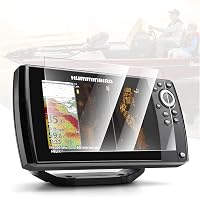
The Karltys Screen Protector for Humminbird Helix is for Humminbird Helix 7 GPS G2, G2N, G3, G3N, G4, and G4N 7-inch touchscreen models. It is tempered glass with 9H hardness, anti-glare and anti-fingerprint features, and a 1-year warranty.
Do not use the Karltys protector on a Garmin display. It is included here as a reminder to match the brand, model family, and screen size before ordering any accessory.
What if the Garmin fish finder will not update?
Check the model, update package, card preparation, power, and connection before trying again. Most update failures come from a mismatch or an interrupted process.
Confirm that the software belongs to the exact model number. Check that the memory card is compatible and that the files are in the folder structure Garmin requires.
If the unit reports an error, write down the message and version shown on screen. Do not repeatedly install unrelated files or switch off the display during a failed installation unless Garmin's instructions direct you to restart.
If the fish finder will not start normally after an interrupted update, contact Garmin support with the model, current screen message, and steps already taken. Keep the unit connected to stable power while following any recovery instructions.
For a different brand, our Humminbird fish finder troubleshooting guide covers a separate repair path. If you use the unit in winter, see how to use a fish finder for ice fishing for setup considerations.
How to update my Garmin fish finder safely
Choose the exact model-specific Garmin method, protect the power connection, and verify the software version after the restart. Record important settings before updating, then test sonar, charts, GPS, and connected equipment.
Pick the Vivelancia protector for a matching 12-inch EchoMAP Ultra or Ultra 2 display. Pick INNOSURE for the listed 10-inch Garmin models, and do not use the Karltys accessory unless you own the specified Humminbird Helix model.
After the update, use how to use a Garmin Striker Plus fish finder if that is your unit family. The safest update is the one matched to your model, downloaded from Garmin, and completed without interrupting power.
Frequently asked questions
How do I update my Garmin fish finder?
Identify the exact Garmin model, check Garmin's support instructions for its compatible software, and use the supported network, memory card, or computer method. Keep the unit connected to stable power during the update, then restart it and confirm the new software version in the system menu.
Can I update a Garmin fish finder with any memory card?
No. Use the card type, capacity, file method, and preparation steps Garmin supports for your model.
A card that works with one ECHOMAP or STRIKER unit may not be suitable for another, so check the model-specific instructions before copying update files.
Will a Garmin fish finder update erase my settings?
An update may change menus or reset some settings, depending on the model and software release. Record important sonar, chart, and display settings before you begin, and check them after the restart.
Follow Garmin's instructions for exporting or restoring user data when that option is available.
Why will my Garmin fish finder not update?
Common causes include the wrong software package, an unsupported card or network connection, low or interrupted power, and an update file that was not prepared correctly. Confirm the model number, repeat the official preparation steps, and contact Garmin support if the unit still rejects the update.